
Import a bank statement (PDF, CSV or photo)
Import a UK bank statement into BossMode as a PDF, CSV or photo, review the lines and add them to Money.
You do not give BossMode your bank login. You import a statement you have downloaded, or a clear photo of a paper one.
- Download a statement from your bank’s app or website as a PDF or CSV. CSV is the most reliable.
- In BossMode, open Money and tap Import a bank statement. (It is also in Settings → Connections & sync.)
- Under Whose account is it?, pick Self-employed or Ltd company.
- Tap Choose file, or Take photo for a paper statement.
- Wait while BossMode reads it, checks the balance and sorts each line into a category.
- Review the lines (see How the checks work). Change any category or take a line out.
- Tap Import.
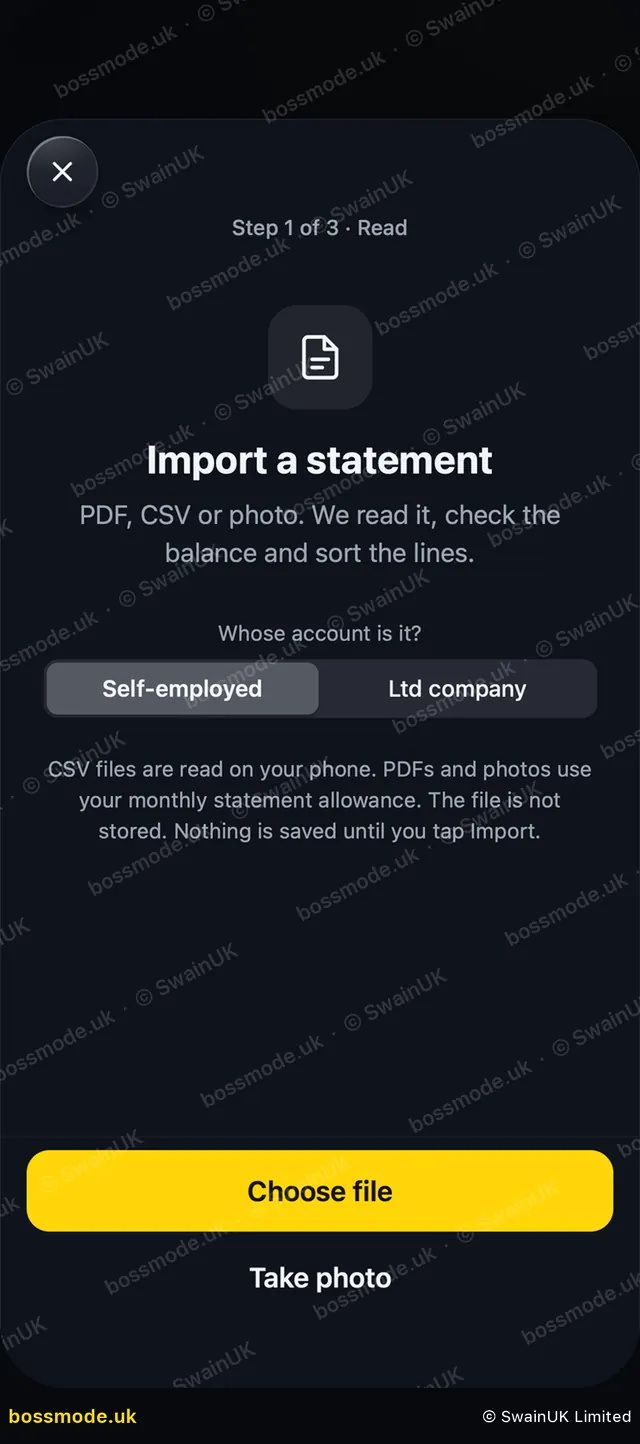
CSV files are read on your phone. PDFs and photos use your monthly statement allowance. The file itself is not stored, and nothing is saved until you tap Import.
- Starter: CSV files.
- Pro and Business: CSV, plus PDF and photo statements read by AI.
- Free trial: 3 statement imports.
Imported the wrong file? Use Undo import straight after, and the lines come out again.
Was this helpful?
Still stuck? Contact us
We answer within 2 working days (UK office hours).
Contact us